Upload failed or mapping not recognized
Applies to v1.7+ · ~4 min read · Troubleshooting
Use these checks when a vehicle, job, or export-template file does not load or the mapping is incomplete.
The file does not open
-
Confirm you selected the intended file.
-
Close the file in another app and try again.
-
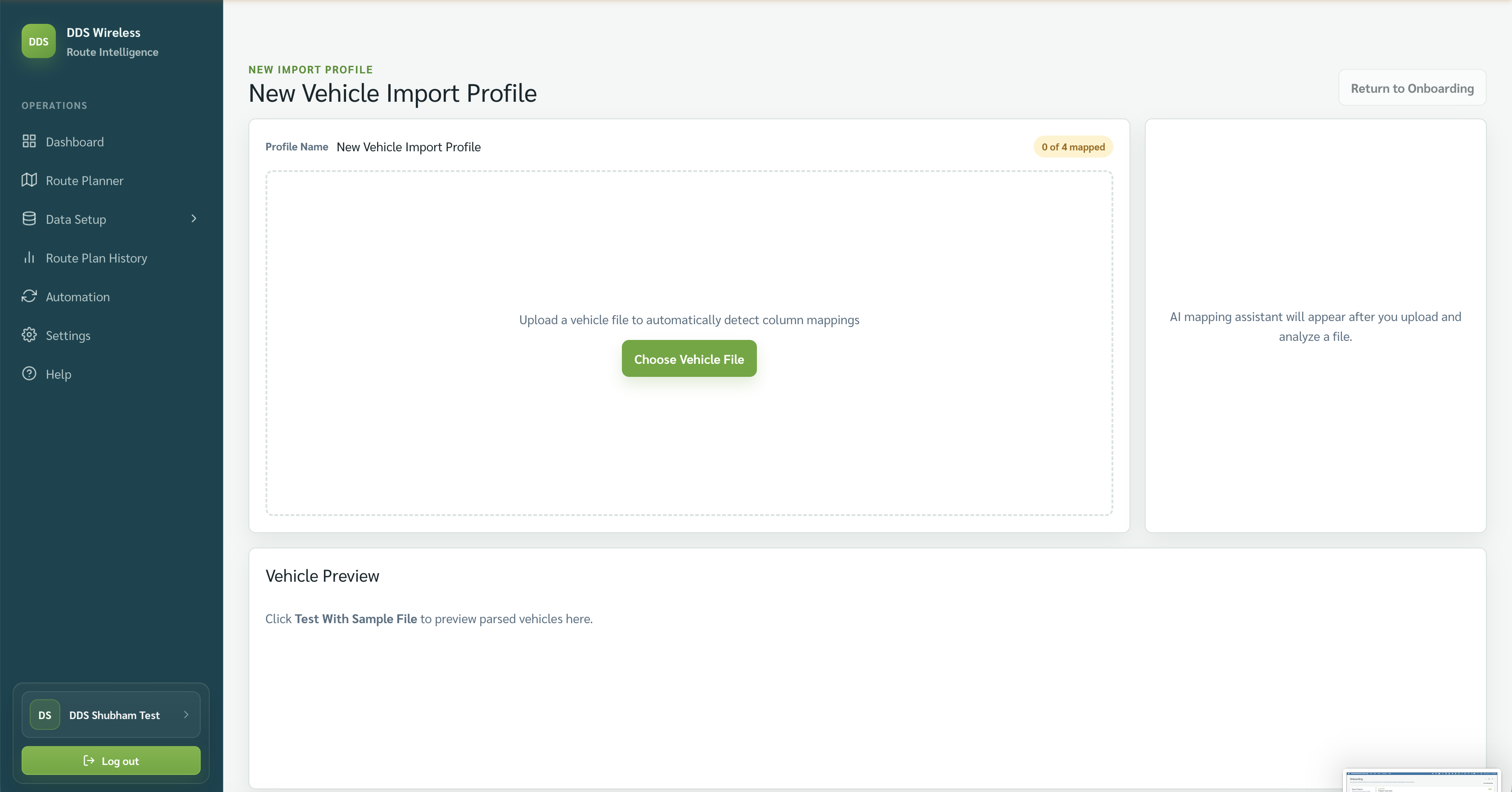
Return to the empty profile screen — New Vehicle Import Profile or New Job Import Profile before a file has been chosen, shown below — and select the file again.
Columns are not recognized
-
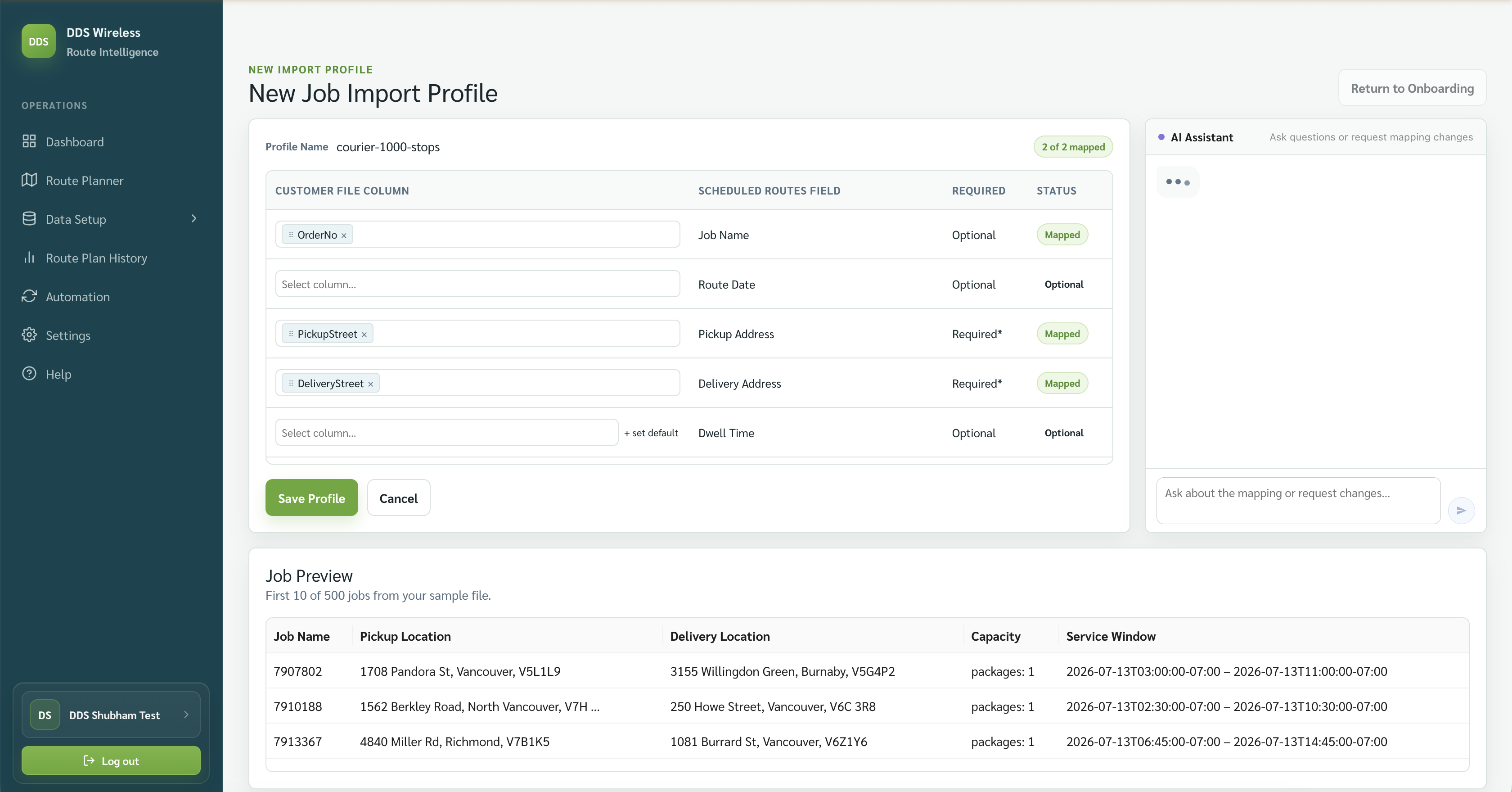
Review the proposed mapping instead of saving immediately.
-
Match each required field to the correct customer-file column.
-
Use the AI assistant panel for a mapping question or requested change.
-
Check the preview rows, then save: a profile you are creating saves with Save Profile; a profile you reopened from Manage Import Profiles saves with Save Mapping.
Required fields are still missing
Compare the mapping with the Vehicle file reference or Job file reference. Add the missing source data, then upload a corrected file.
Accepted files
Vehicle and job files used to create or edit an import profile must be CSV, XLS, or XLSX. Two places accept PDF as well: Data Setup → Manage Data → Vehicles → Import Vehicles (which reuses an existing profile), and the export template you upload when creating a custom export profile. There is no fixed file-size limit. The app does not produce a separate import-error file — resolve issues in the mapping screen and re-upload a corrected file.
Related: Saved mappings · Import your vehicles · Import your jobs