Recurring jobs
Applies to v1.7+ · ~5 min read · Import guides
Create work that should be added automatically on a repeating schedule.
Open recurring jobs
Go to Data Setup → Manage Data → Recurring Jobs. The list shows saved recurring jobs; filters let you narrow by cadence and status. To bring a batch in from a file, use Import Recurring Jobs at the top right.
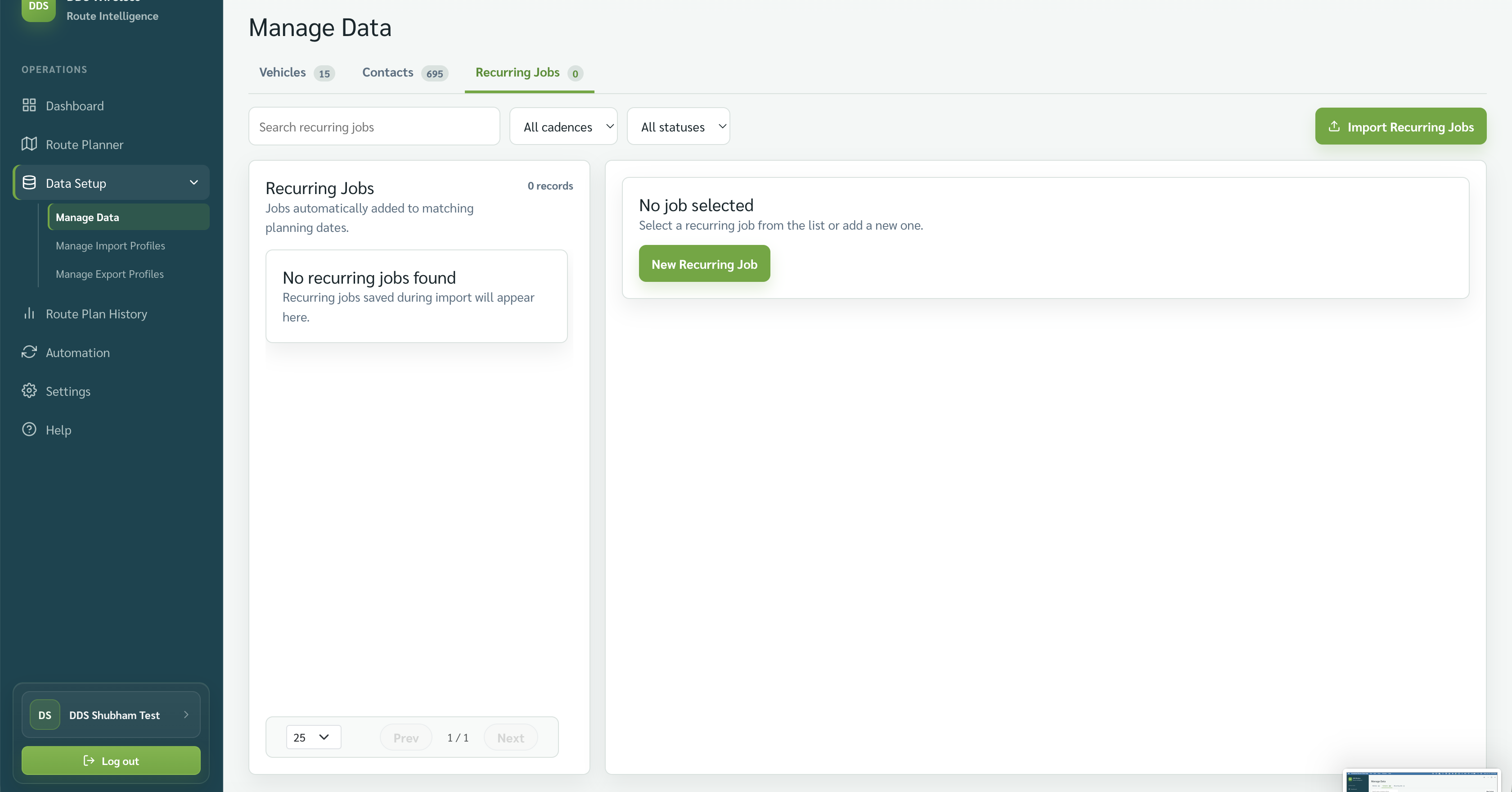
Add a recurring job
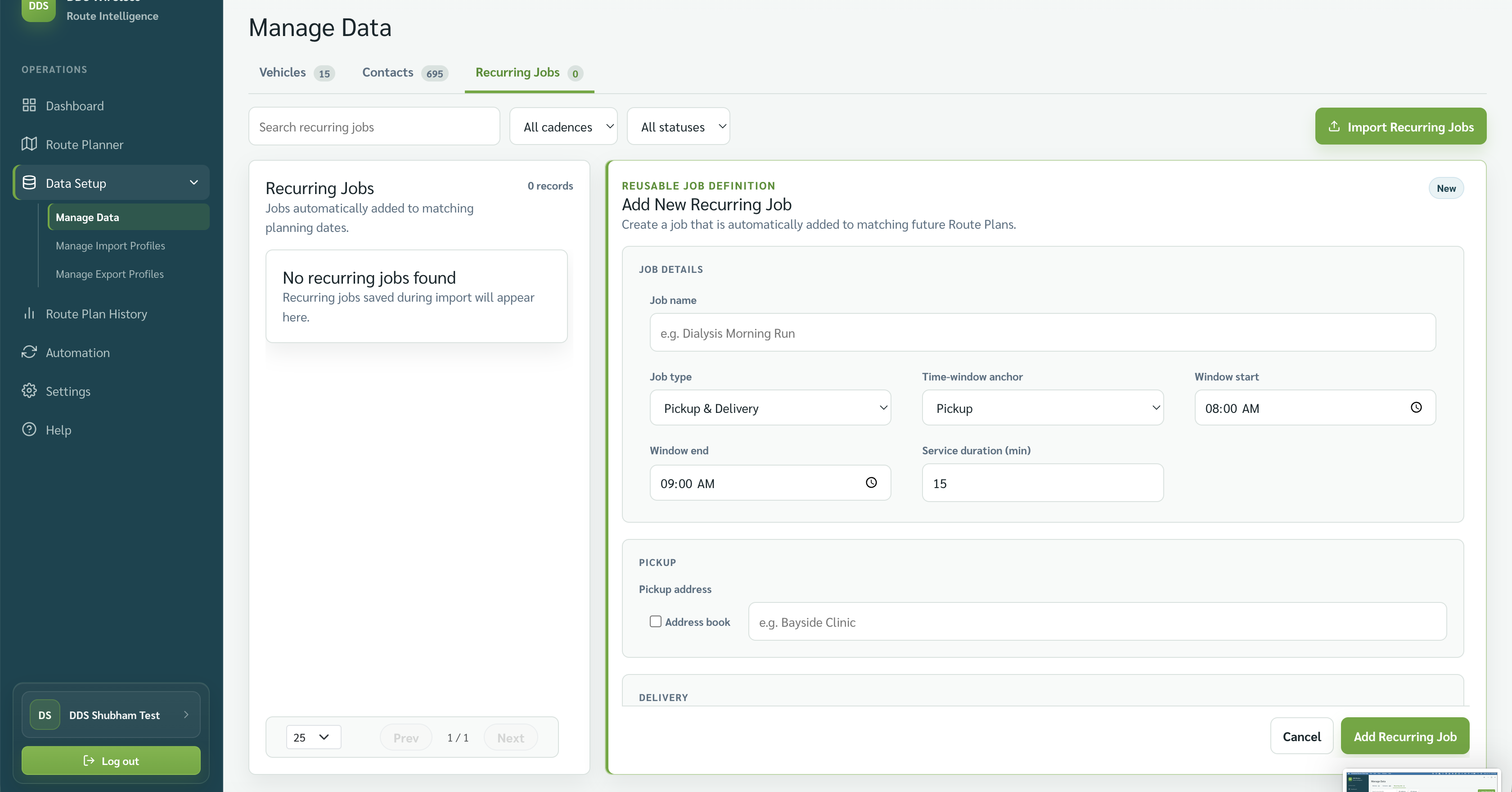
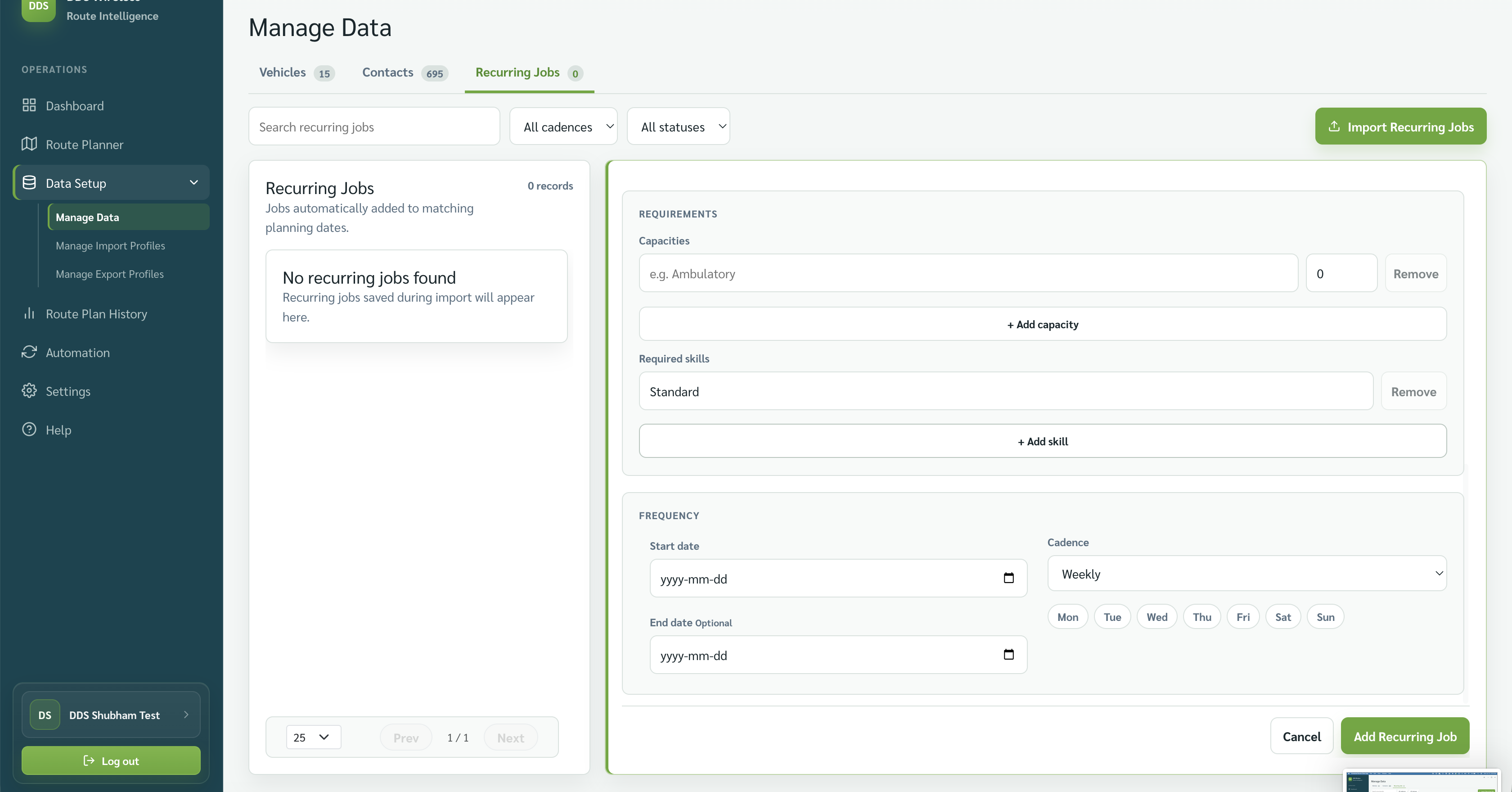
Select New Recurring Job. The form is longer than the screen, so it is shown below in two parts — scroll to reach the second half.
Top of the form — Job details and Pickup:
- Enter the job name and choose the job type.
- Set the time-window anchor, window start and end, and service duration.
- Enter the pickup and delivery locations.
Bottom of the form — Requirements and Frequency:
- Add capacity and required skills when they apply.
- Set the frequency: start date, optional end date, cadence, and the weekday choices shown for a weekly schedule.
- Select Add Recurring Job.
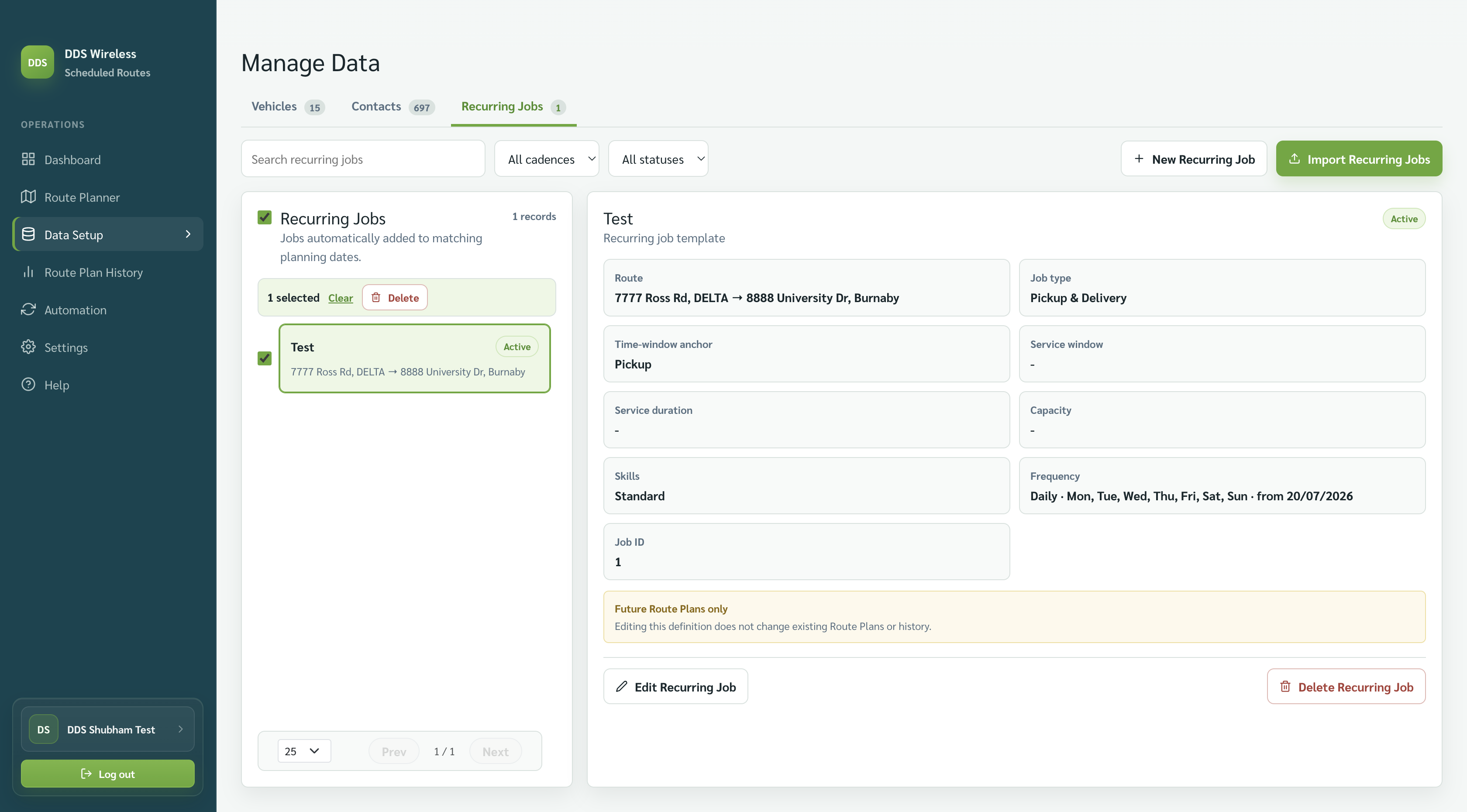
Delete recurring jobs in bulk
- Select the checkbox beside each recurring job you want to remove. Use the checkbox beside Recurring Jobs to select every visible record.
- Select Delete in the bulk-action bar.
- Review the confirmation before continuing. Select Clear instead if you want to remove the selection.
When recurring jobs appear
When you import a file or open Route Planner for a date, each matching recurring job appears as a single job instance for that date, ready to plan alongside your imported jobs.
Related: Import your jobs · Manage contacts · Daily planning workflow