Add, replace, clear and manually add jobs
Applies to v1.7+ · ~5 min read · Plan routes
Change the jobs included in the current Route Planner session before choosing a strategy.
Review and edit loaded jobs
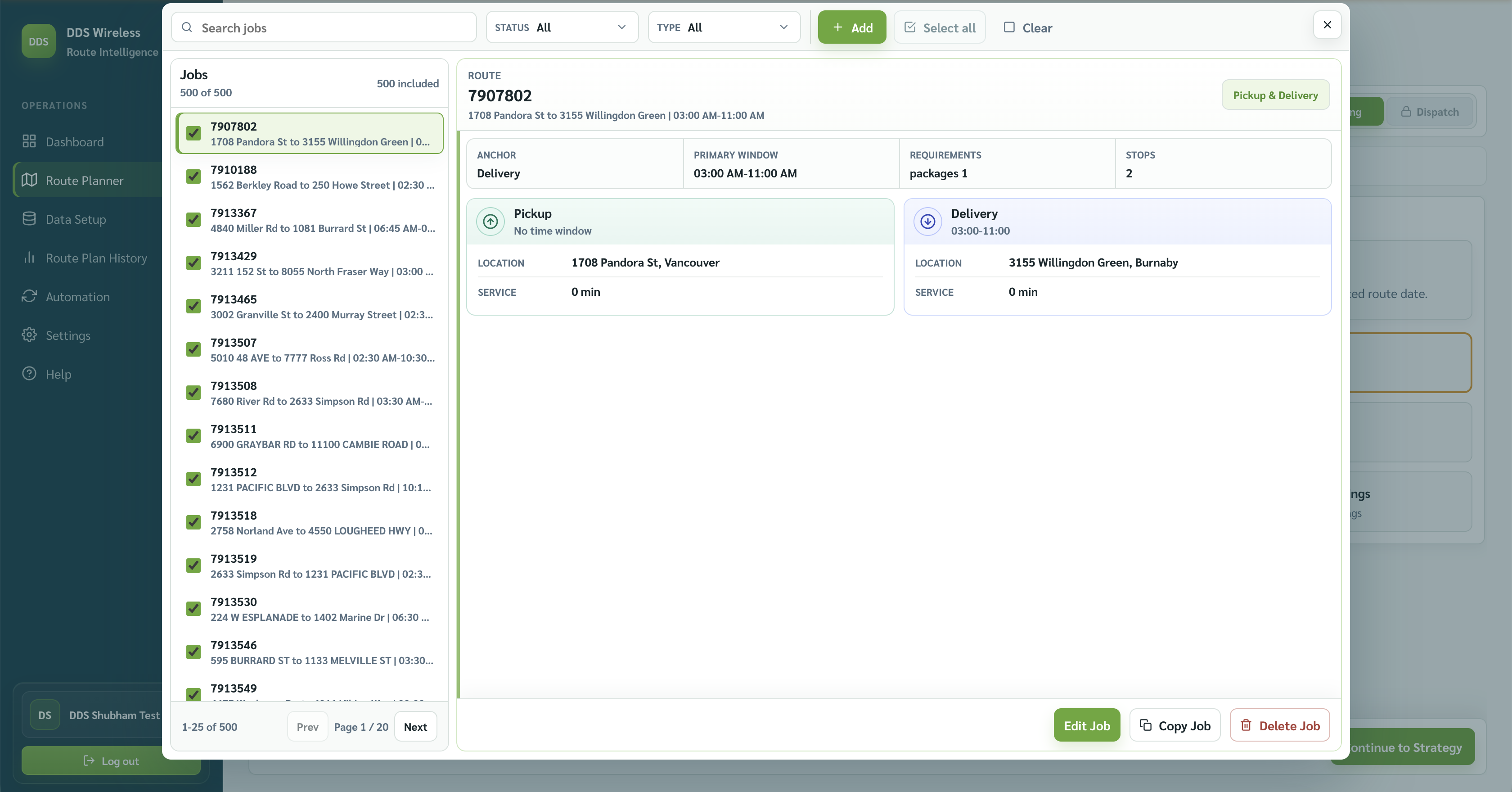
On Import & Validate Jobs, select Manage Jobs in Plan Tools. Search, filter, and select a job to review its pickup, delivery, requirements, and stops. Available actions include Edit Job, Copy Job, Delete Job, and + Add.
Import another file
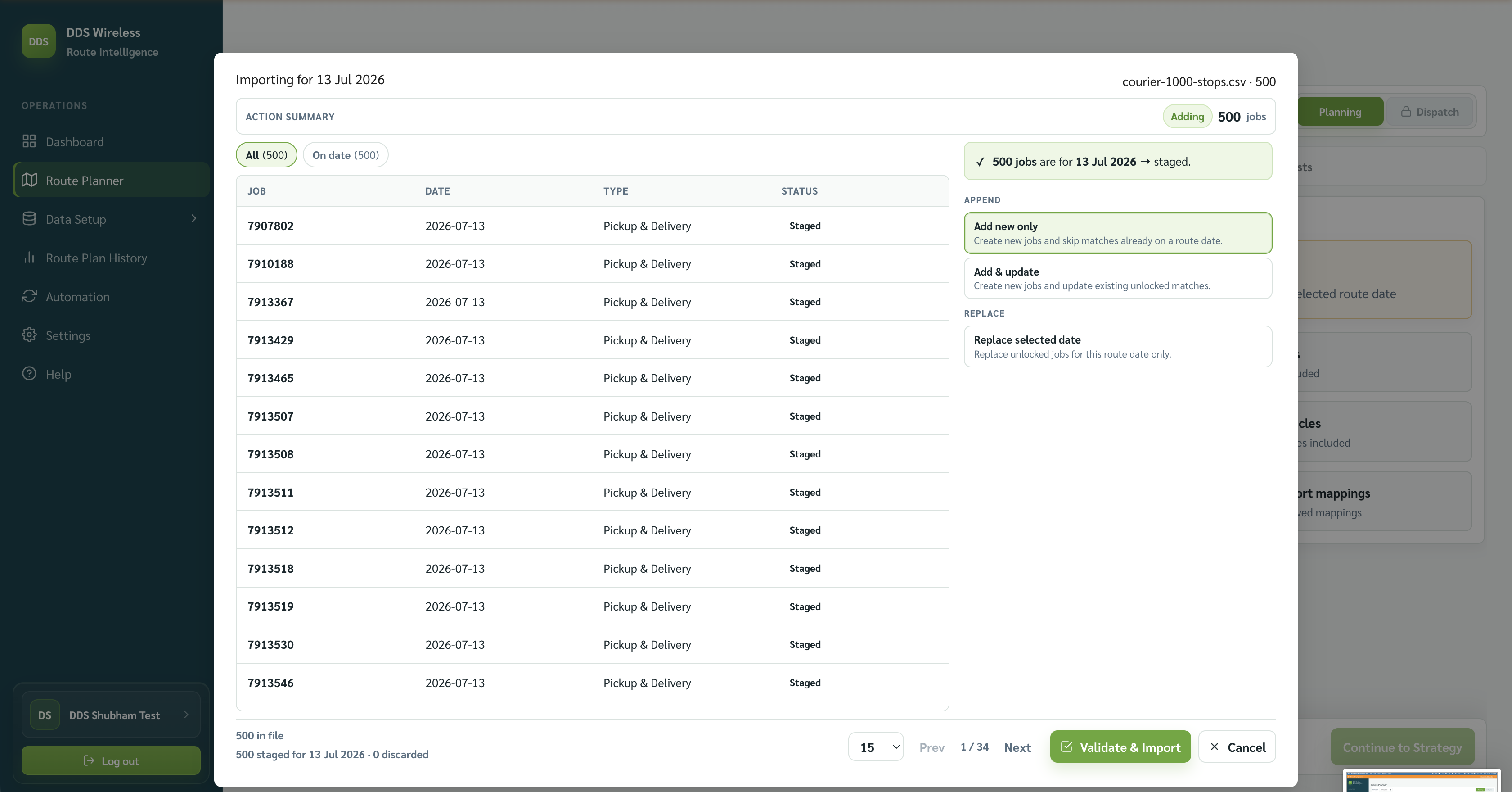
On Import & Validate Jobs, select Import and choose a file. This opens the staging panel — the review screen that appears over the step, showing what would happen. Nothing enters the plan until you select Validate & Import.
Review the JOB, DATE, TYPE, and STATUS columns. The top Action summary describes the pending change, while the footer reports the number of jobs in the file, staged for the route date, and discarded. Use All and On date to filter the rows.
Deciding what happens to each date. The panel groups the file's jobs by their date and offers a choice per group, right on the group's row:
| Group | Choice offered |
|---|---|
| Jobs on the route date | None — staged automatically |
| Jobs with no date | None — assigned to the route date |
| Jobs dated in the future | Schedule for future, Move to route date, or Discard |
| Jobs dated in the past | Move to route date or Discard |
Then choose one merge option, from the Append and Replace groups at the bottom of the panel:
| Action | Use it for |
|---|---|
| Add new only | Add new jobs and skip matches already on the route date. |
| Add & update | Add new jobs and update existing unlocked matches. |
| Replace selected date | Replace unlocked jobs for this route date only. |
Locked jobs are protected
A job becomes locked when it is part of the active dispatch route plan — after you switch Route Planner into Dispatch mode on an optimized plan for today. Locked jobs are never overwritten or dropped by an import; they are reported as skipped, and their checkboxes are disabled with the tooltip "This job is locked in the active dispatch route plan." In ordinary Planning mode nothing is locked. See Dispatch mode.
Select Validate & Import after reviewing the staged jobs.
Clear the current jobs
Select Clear Jobs on the Import & Validate Jobs step, then confirm. Clear Jobs works in the context of Route Planner — it clears the jobs loaded for the current route date.
Result
The Jobs included count reflects the current list. Review Needs attention, then select Continue to Strategy.
Related: Daily planning workflow · Re-optimize a plan · Import your jobs