Dispatch mode
Applies to v1.7+ · ~5 min read · Plan routes
Dispatch mode is for the operating day, once the plan is out with drivers. You record how far each vehicle has actually got, add any late work that came in, and reoptimize only what's left — without disturbing the stops already completed.
Before you start
Dispatch is available only when there is an optimized route plan for today. Set the route date to today and run a normal Planning optimization first; until then the toggle is locked and explains why.
Switch to Dispatch
Use the Planning / Dispatch toggle in the Route Planner header and select Dispatch.
Two things change:
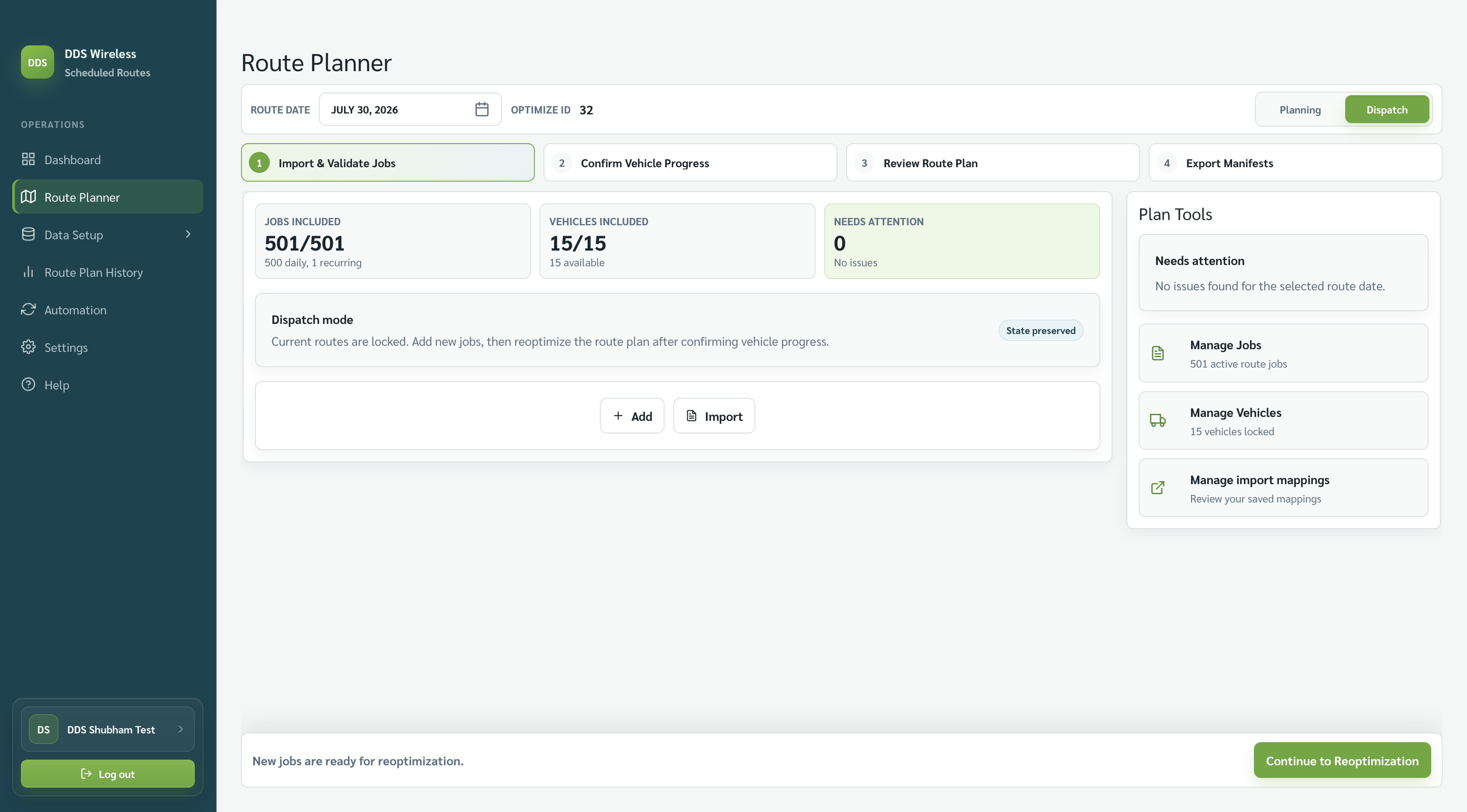
- Every job already in the plan becomes locked — protected from being overwritten, dropped, or de-selected.
- Step 2 of the Route Planner changes from Choose Strategy to Confirm Vehicle Progress, and the optimize button becomes Reoptimize Route Plan.
Add any late work
- On Import & Validate Jobs, select Import and choose the file, or select Add to enter a single job by hand.
- In the staging panel, only Add new only is offered — Dispatch never replaces or updates what drivers are already running.
- Select Validate & Import.
Confirm vehicle progress
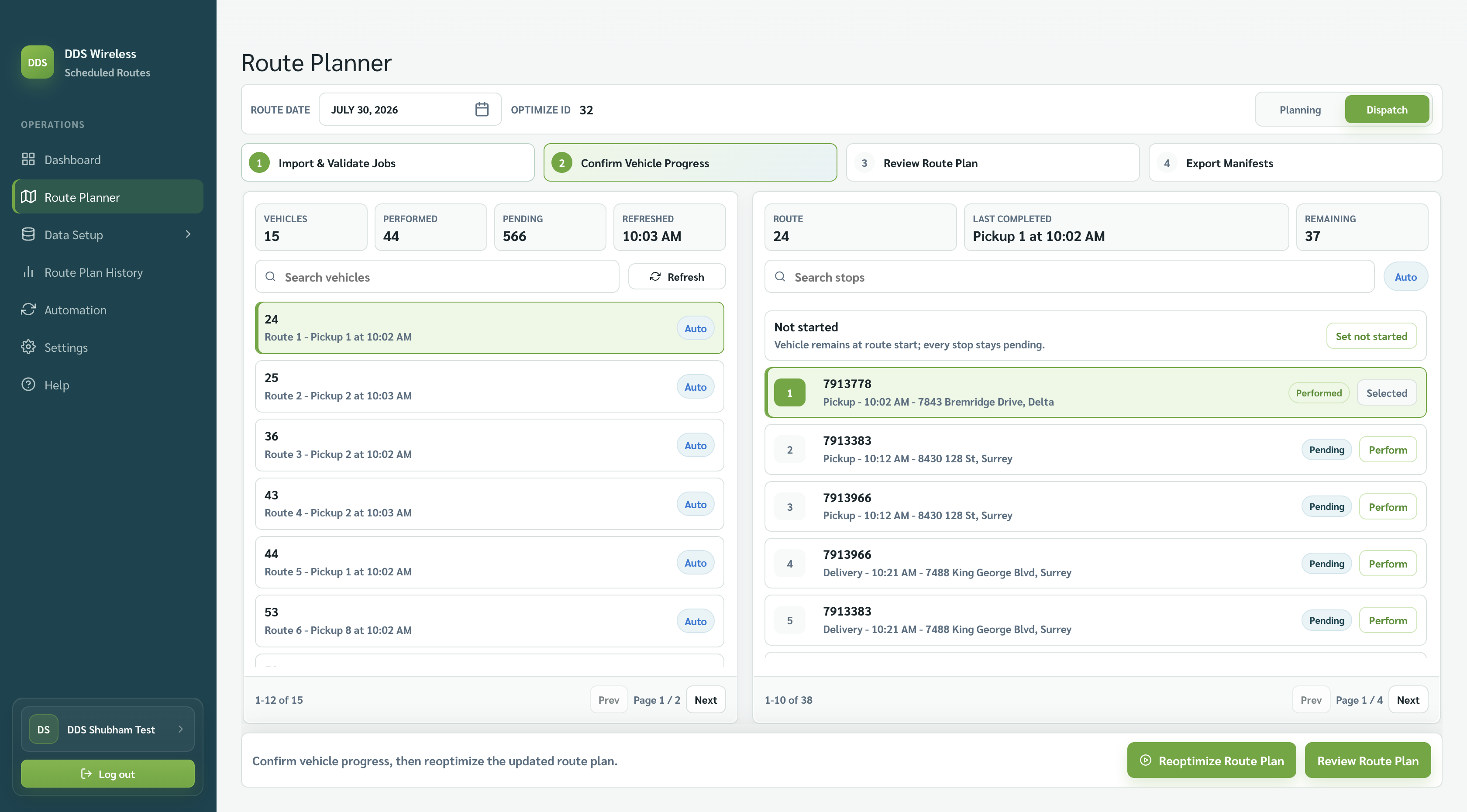
- Go to step 2, Confirm Vehicle Progress. The left panel lists each vehicle's route; the right panel shows that route's stops in order.
- Select a vehicle to see its stops. The summary above them shows Route, Last completed, and Remaining.
- For each vehicle, select Perform on the last stop the driver has actually completed. That stop and everything before it are marked Performed; everything after stays Pending.
- If a driver hasn't left yet, use Set not started on the Not started row — the vehicle stays at its route start and every stop remains pending.
- Repeat for each vehicle that has moved. Vehicles you don't touch keep the automatic progress estimate; the chip beside the search box reads Auto until you set progress yourself, then Manual.
Finding a stop quickly
Both panels have a search box — search vehicles on the left, stops on the right. Long routes are paged; use Prev and Next beneath the list.
Reoptimize
Select Reoptimize Route Plan. The engine keeps the completed stops as they are and rebuilds the remainder of each route around the vehicles' current positions and any new jobs.
Then review and export exactly as in Planning: Review Route Plan → Continue to Export → Export Manifests.
Result
Drivers get an updated manifest for the rest of the day, and the work already done is preserved. The plan stays in Dispatch until you switch the toggle back to Planning.
Switching back to Planning
Planning mode works from the plan as optimized, not from the dispatch progress you recorded. Finish the dispatch cycle — reoptimize and export — before switching back.
Related: Planning vs Dispatch · Re-optimize a plan · Daily planning workflow