Import your jobs
Applies to v1.7+ · ~5 min read · Import guides
Create a reusable job import profile from a representative daily file, then use that profile when loading future job files with the same columns.
Before you start
Have a representative jobs file ready — CSV, XLS, or XLSX. Check that it includes the pickup and delivery information needed for planning.
Create the job profile
-
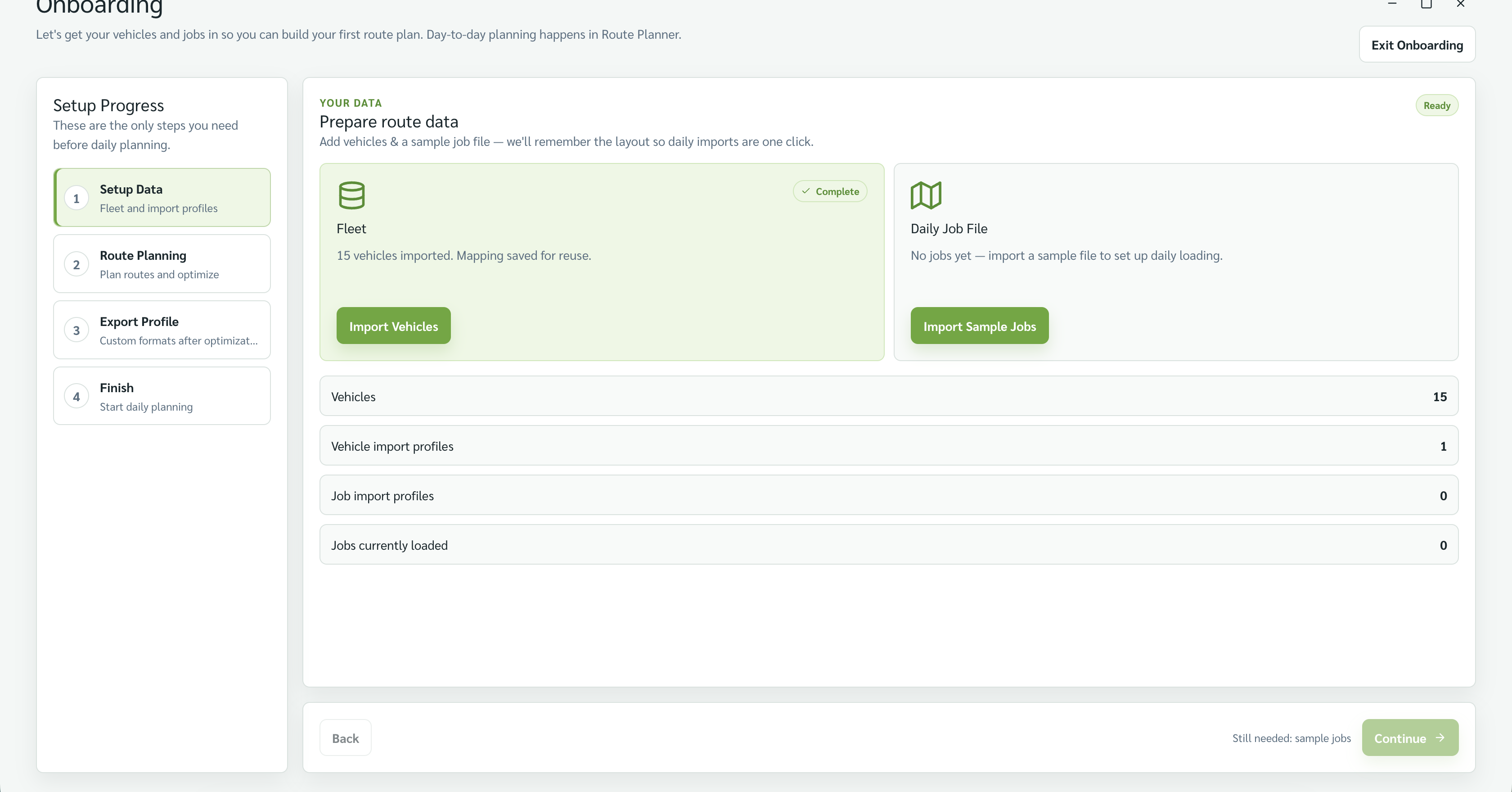
On the wizard's Step 1 · Setup Data, find the Daily Job File card and select Import Sample Jobs. (Outside onboarding, go to Data Setup → Manage Import Profiles → Job Profiles and select Import New Profile.)
-
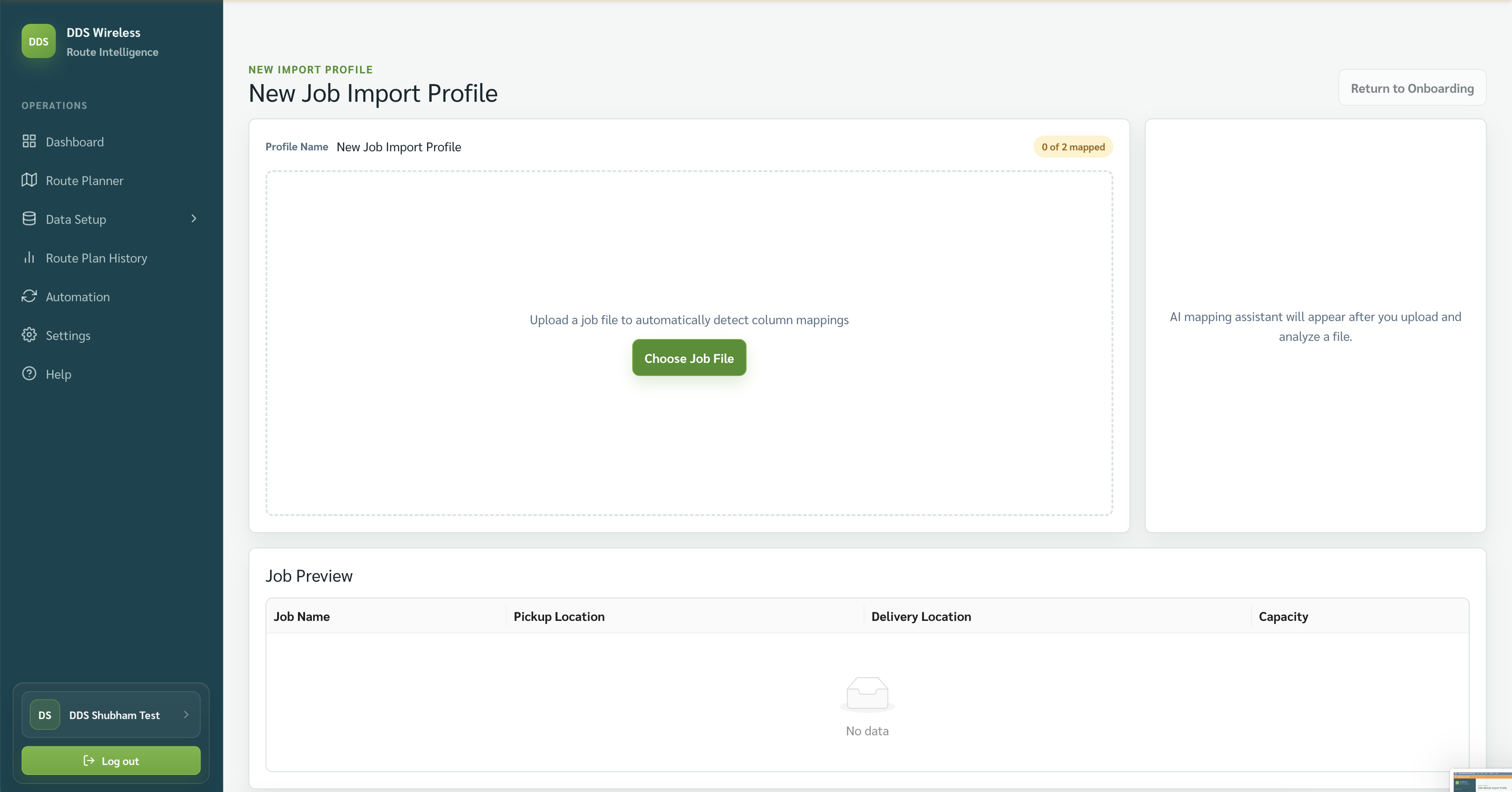
On New Job Import Profile, select Choose Job File and choose the representative jobs file.
-
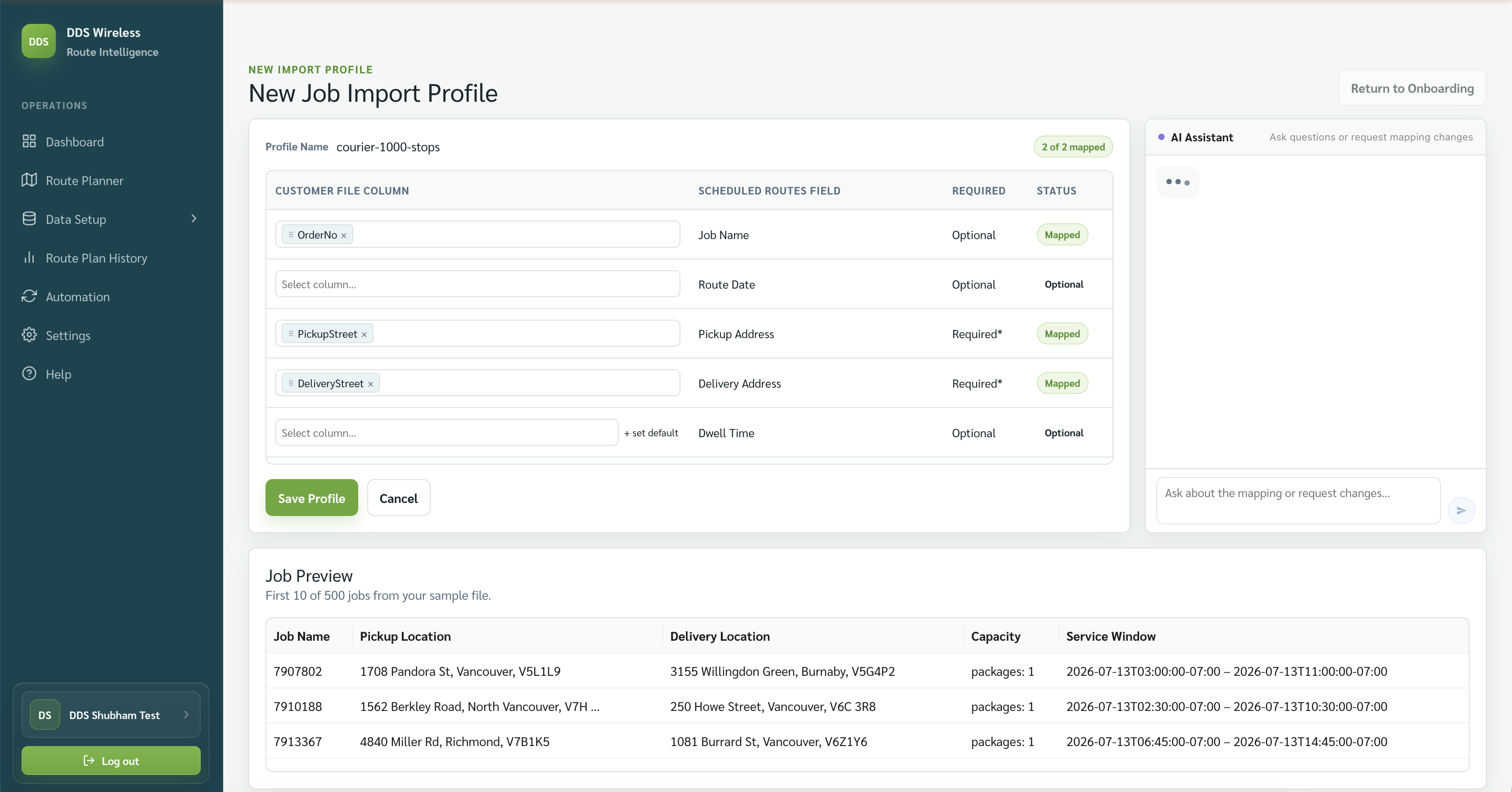
Still on New Job Import Profile, review each customer column and its Scheduled Routes field.
-
Confirm the required address fields are mapped. Pickup Address and Delivery Address are required; Job Name, Route Date, Dwell Time, and the window fields are optional.
-
Review Job Preview. Compare the job name, pickup location, delivery location, dwell time, capacity, and service window with the source file.
-
If a match is wrong, choose the correct customer column. Use the AI assistant panel to ask about the mapping, request a change, or work through a problem with the data — for example, an address split across columns or a date format the app couldn't read.
-
Select Save Profile.
This creates the mapping, not the day's jobs
Saving the profile teaches the app how to read your file. The jobs you plan are loaded in Route Planner — see Load today's jobs below. Work that repeats on a schedule is set up separately in Recurring jobs.
Confirm the saved job profile
-
Open Data Setup → Manage Import Profiles and select Job Profiles.
-
Select the saved profile and review its file name and mapping preview. Select Edit Mapping whenever the daily file's column layout changes — the screen opens as Edit Job Import Profile, and its save button reads Save Mapping.
Load today's jobs
-
Open Route Planner and confirm the route date.
-
On Import & Validate Jobs, drag today's file onto the drop zone or select Browse Files. Route Planner matches the file to your saved job profile automatically.
-
Review the file in the staging panel that opens. This is the review screen that appears over the Import & Validate Jobs step after you choose a file; it shows what would happen, and nothing enters the plan until you select Validate & Import.
The panel lists JOB, DATE, TYPE, and STATUS. Check the Action summary at the top, use All or On date to filter the rows, and review the footer tally for jobs in the file, staged for the route date, and discarded.
Job date Available handling On the route date Staged automatically. No date Assigned to the route date. Future date Schedule for future, Move to route date, or Discard. Past date Move to route date or Discard. Then choose the merge option that matches your intent:
Merge option What it does Add new only Adds new jobs and skips matches already on the route date. Add & update Adds new jobs and updates existing unlocked matches. Replace selected date Replaces unlocked jobs for this route date only. 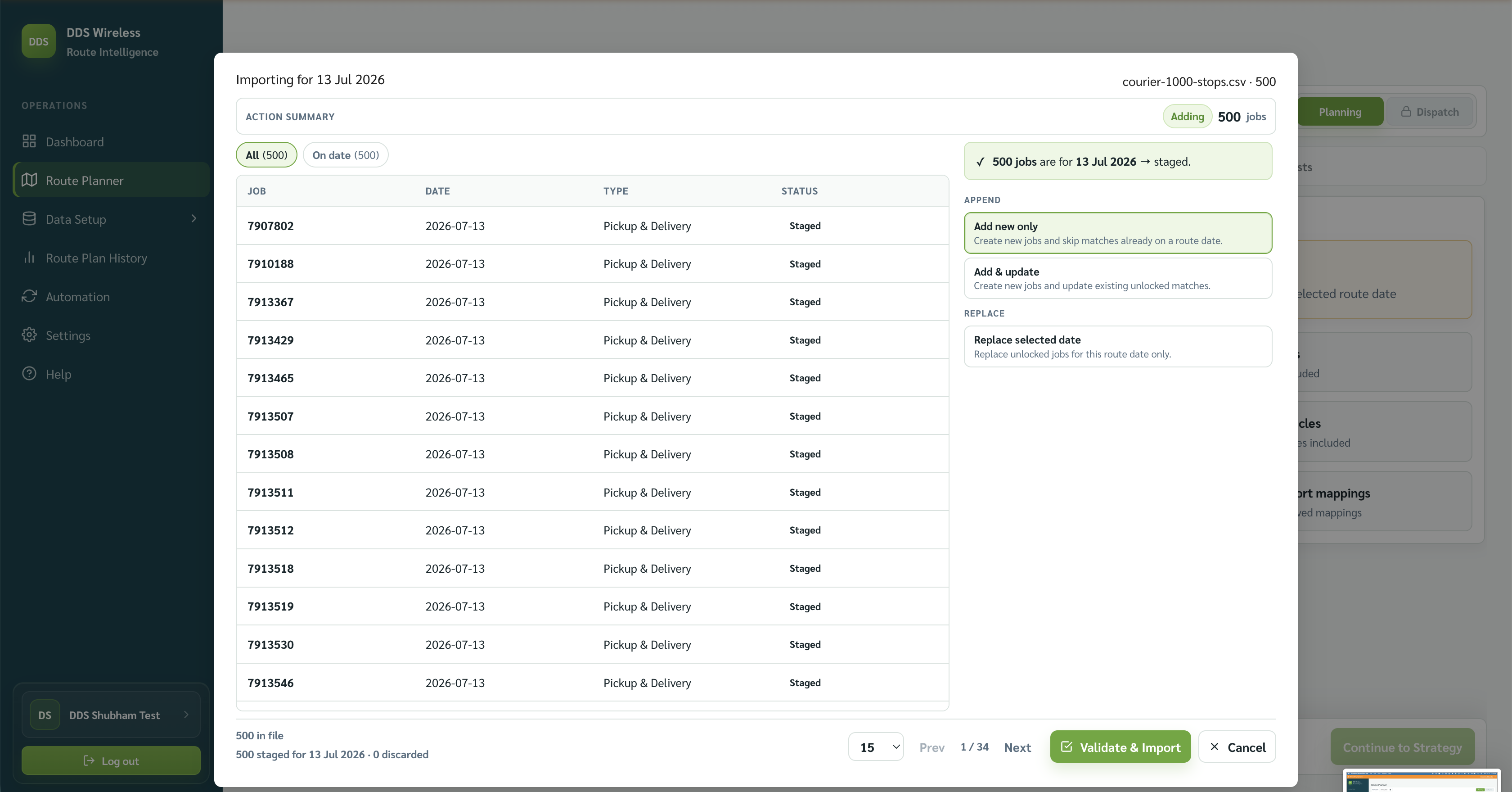
-
Select Validate & Import, then confirm Jobs included, Vehicles included, and Needs attention before continuing.
Locked and unlocked jobs
A job becomes locked when it is part of the active dispatch route plan — that is, once you have switched Route Planner into Dispatch mode on an optimized plan for today. Locked jobs are protected: an import never overwrites or drops them (they are reported as skipped), and their checkboxes are disabled with the tooltip "This job is locked in the active dispatch route plan." Everything else is unlocked, and those are the jobs that Add & update and Replace selected date can change. In ordinary Planning mode nothing is locked.
Result
Today's jobs are ready for strategy selection. You don't reselect the mapping each day — once a job profile exists, Route Planner uses it automatically to read files with the same layout, so daily imports are just browse and validate.
Related: Saved mappings · Job file reference · Daily planning workflow · Upload failed or mapping not recognized