Re-optimize a plan
Applies to v1.7+ · ~3 min read · Plan routes
Re-run optimization after jobs, vehicles, or the strategy change.
Before you re-optimize
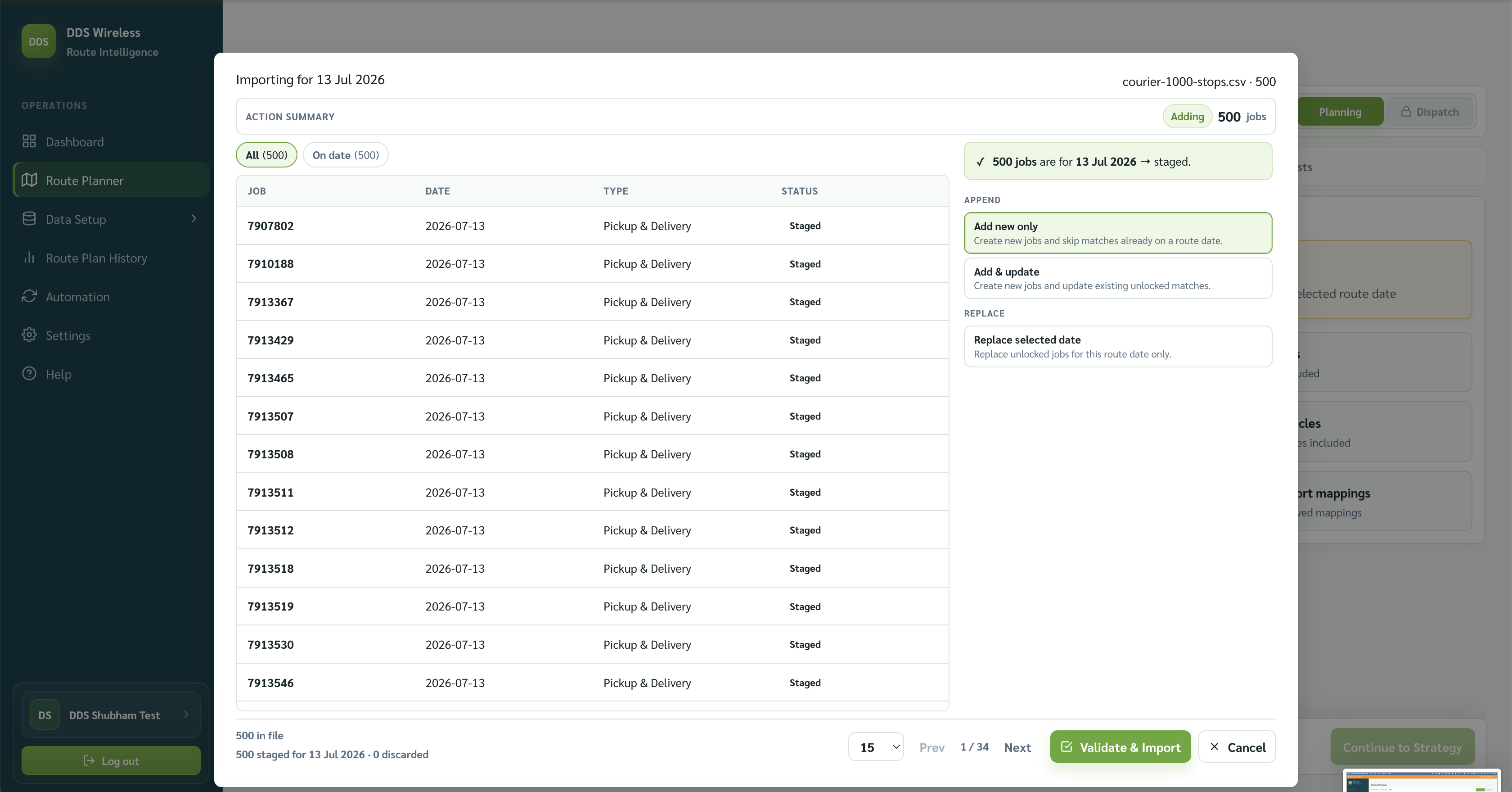
Review what changed. If you are importing another file, the import window offers Add new only, Add & update, and Replace selected date. Choose the action that matches the file you are loading.
Re-run the plan
- Return to Import & Validate Jobs when job or vehicle data changed.
- Confirm Jobs included, Vehicles included, and Needs attention.
- Continue to Choose Strategy.
- Select the strategy for the new run, then run optimization.
- Review routes and unassigned jobs again before exporting.
Previously exported manifests
A new optimization can change route order, ETAs, and assignments. Export a new manifest after the run and make sure dispatch uses the current file.
Live re-optimization is part of Dispatch
Re-optimizing against the current status of your vehicles happens in Dispatch mode. Fuller step-by-step guidance for that flow is coming — see Dispatch mode.
Related: Add, replace, clear and manually add jobs · Review the route plan · Built-in exports