Manifest field reference
Applies to v1.7+ · ~4 min read · Export and manifests
This reference lists the Scheduled Routes fields you can map to a column of your own manifest, and the columns of the built-in manifest.
Fields you can map to an output column
These are the fields offered on New Export Profile / Edit Export Mapping. Map each one to the column heading your manifest uses.
| Scheduled Routes field | What it holds |
|---|---|
| Vehicle ID | The identifier of the vehicle assigned to the job in the optimized route result. |
| Shift | Which part of the day the driver is working. |
| Job Name | The name or reference number of the job. |
| Stop Sequence | The position of the stop in the optimized route. Filled after optimization. |
| Stop Type | Pickup, Delivery, or Pickup/Delivery, from the job's task structure. Maps to columns such as Delivery/Pickup, Stop Type, or P/D. |
| Estimated Pickup Time | When the driver arrives at the pickup location. |
| Pickup Address | Street address of the pickup stop. |
| Pickup City | City of the pickup stop. |
| Pickup State | State or province of the pickup stop. |
| Pickup Duration | How long the driver spends at the pickup stop. |
| Pickup Notes | Extra instructions for the pickup stop. |
| Estimated Delivery Time | When the driver arrives at the delivery location. |
| Delivery Address | Street address of the delivery stop. |
| Delivery City | City of the delivery stop. |
| Delivery State | State or province of the delivery stop. |
| Delivery Duration | How long the driver spends at the delivery stop. |
| Delivery Notes | Extra instructions for the delivery stop. |
| Contact Name | The recipient or contact person at the stop. |
| Postal / ZIP Code | The postal or ZIP code at the stop. |
| Location Nickname | An alias or short name for the location. |
| Service Window Start | Scheduled start of the pickup or delivery window. |
| Service Window End | Scheduled end of the pickup or delivery window. |
| Time to Next Stop | Travel time to the next stop. Filled after optimization. |
| Distance to Next Stop | Distance to the next stop. Filled after optimization. |
Columns in the built-in manifest
With no custom export profile, the Preview Output panel on Export Manifests is badged Default manifest and produces these ten columns, one row per stop:
Vehicle Name, Shift, ETA, Address, City, State/Province, Type, Job Name, Job Duration, Notes.
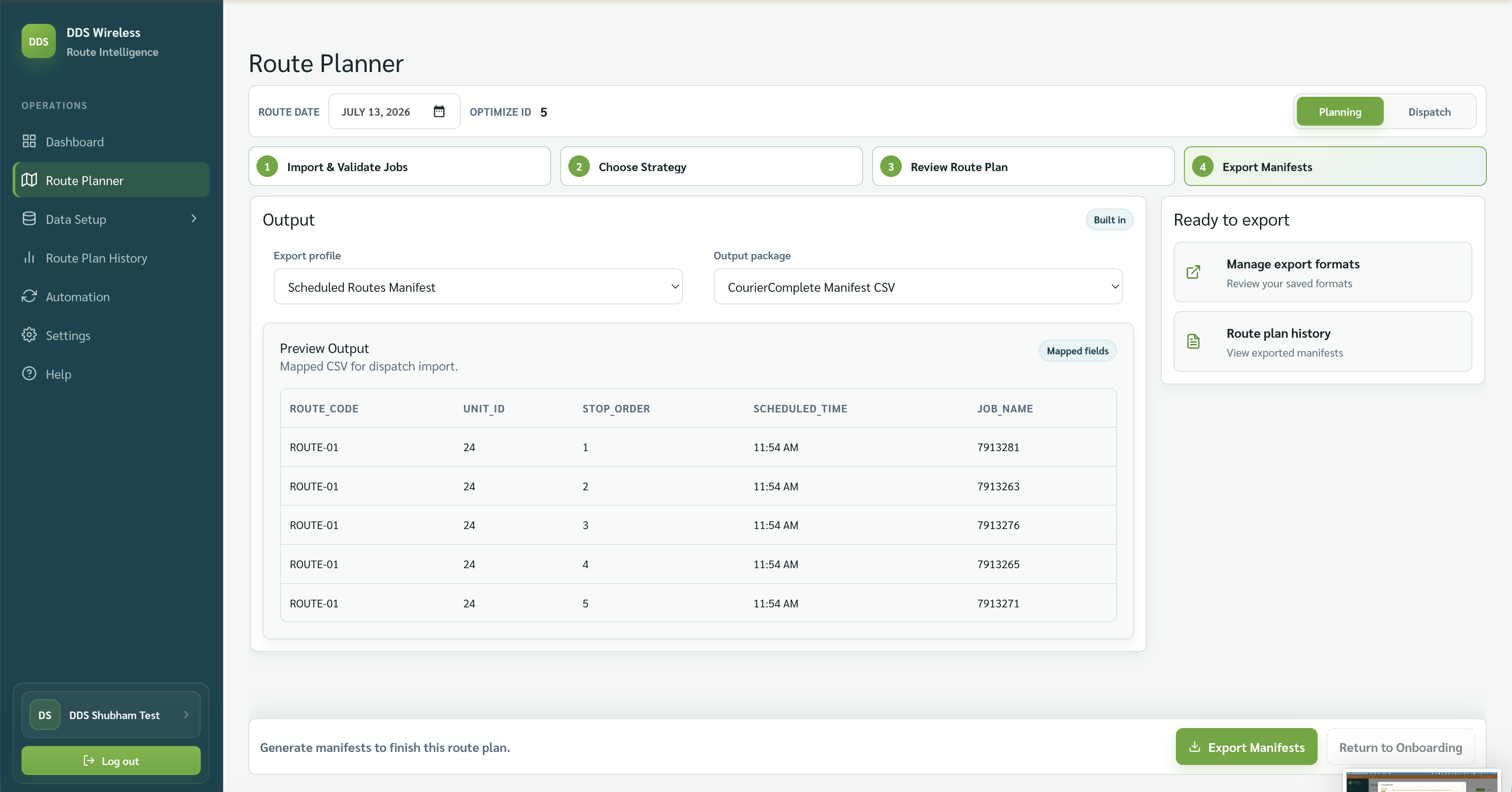
The preview follows your profile
When a custom export profile is active, the panel is badged Mapped fields and the preview shows your profile's own column headings instead — the same headings the exported file will carry.
Related: Custom export format · Manage export format · Built-in exports